
Table of Contents
In Case If You Don’t Know What “Update PHP” Means
Who Pressable MCP Is Really Best For
What Can Pressable MCP Actually Do?
Step-by-Step: How to Set Up Pressable MCP
Step 1: Create a Pressable Account
Step 2: Go to Access Your API Key
Step 7: Gradually Expand Usage
What I Personally Like About Pressable MCP
What Beginners Should Be Careful About
AI website building is no longer a new thing. And now with Pressable MCP, you’re getting better control of using AI to manage your WordPress site.
You can now connect AI tools like ChatGPT, Claude AI, Google Gemini and other AI tools directly to your Pressable hosting environment. This allows the AI tool to take real actions like create websites, manage hosting settings, update PHP versions, review logs, create staging sites, and handle other technical tasks using simple conversational prompts.
In this article, I’ll explain what Pressable MCP actually is, who it is best for, what you can realistically do with it, how to set it up step by step, the limitations and safety considerations and how non-developers can benefit from it today.
Before we get started, my overall experience with it has been excellent. And I would personally rate Pressable MCP 5 stars for ease of use, especially considering this technology is still in beta.
Disclosure: This blog is supported by affiliate commissions. Learn more.
So, What Is Pressable MCP?
Pressable MCP is an integration system that allows AI assistants to connect directly to your Pressable hosting account.
“MCP” stands for Model Context Protocol, an open standard designed to help AI tools securely communicate with external platforms and services.
In simpler terms, Pressable MCP allows tools like ChatGPT, Claude, Gemini and Grok to interact directly with your hosting environment. This is important because the AI is not just giving suggestions anymore. It can actually perform actions on your websites.
For example, you can ask the AI to:
- Create a new site
- Clone an existing site
- Create a staging environment
- Update PHP versions
- Check logs
- Manage collaborators
- Review hosting information
- Generate one-press login links
- Manage domains and more
That changes the experience completely. You do not have to manually edit everything yourself; users can now interact with their hosting environment conversationally. For bloggers, this means less technical work and faster workflows.
In Case If You Don’t Know What “Update PHP” Means
PHP is the programming language powering much of WordPress behind the scenes. And over time, newer PHP versions improve your website speed, security, compatibility and performance.
With Pressable MCP, all you have to do is tell your preferred AI assistant to for example: “update my site 122437 from php 8.2 to 8.5 and it’s done.
Who Pressable MCP Is Really Best For
While anyone can use Pressable MCP as it’s very beginner friendly, the biggest power users will likely be:
- Agencies
- Freelancers
- Developers and,
- Multi-site managers
Why? Because managing multiple WordPress sites manually is exhausting and Pressable MCP does a very great job in helping to automate and simplify repetitive administrative work across several websites.
For example, an agency could ask AI to: “Show all client sites still running older PHP versions.”
Or: “Create staging environments for all active projects.”
That kind of workflow efficiency becomes extremely valuable at scale.
What Can Pressable MCP Actually Do?
You can manage site creation, information, domains, configuration, logs, OnePress logins, collaborators, themes, plugins and more directly through AI tools.
Some practical examples include:
- Check your plan usage
- Get site status
- Add domain
- Remove domain
- Set environment type
- Reset collaborator WordPress password
- Install, activate or deactivate a plugin
- Install, update or delete a theme
- Restore from backup and so much more
This is especially useful for agencies and advanced users managing multiple websites, but even solo bloggers can benefit.
For example, imagine asking: “Which of my websites has the highest activity this week?”
Or: “Create a test version of my blog before I redesign it.”
That is far easier than manually navigating hosting tools.
You can learn more in official Pressable MCP documentation.
How Pressable MCP Works
The process is surprisingly straightforward.
- You create an MCP access token inside Pressable.
- You connect that token to your preferred AI tool (Although using ChatGPT doesn’t require a token)
- The AI gains permission to interact with approved hosting functions.
- You manage tasks through conversation prompts.
A Quick Note: Pressable MCP is currently in beta, which means you may encounter bugs or unexpected behavior. During testing and documentation, Pressable’s team has acknowledged a few issues users may encounter, including:
- Plan names displaying incorrectly and,
- One-press login link errors
That does not make the tool unusable, but it does mean expectations should stay realistic. The technology is impressive, but it is still evolving.
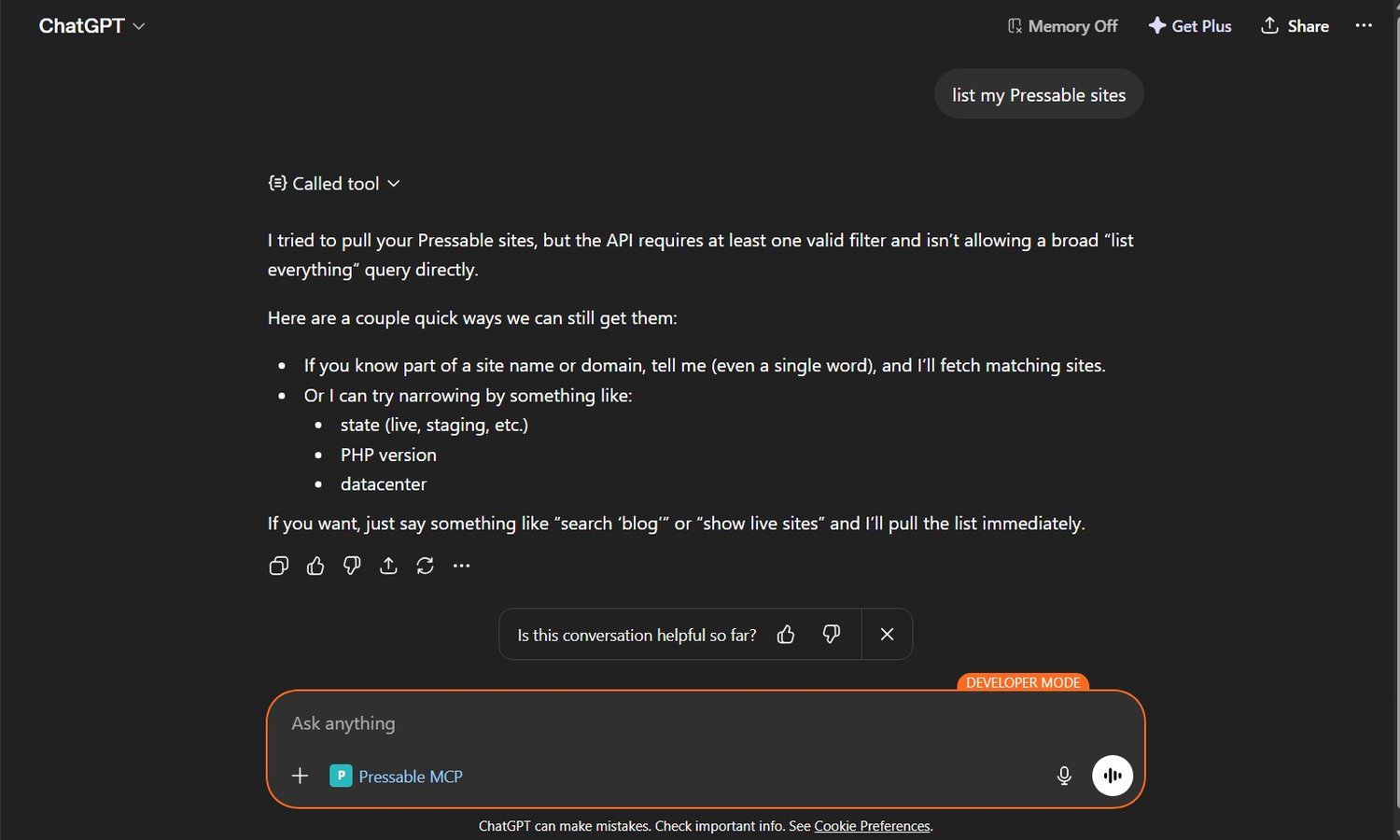
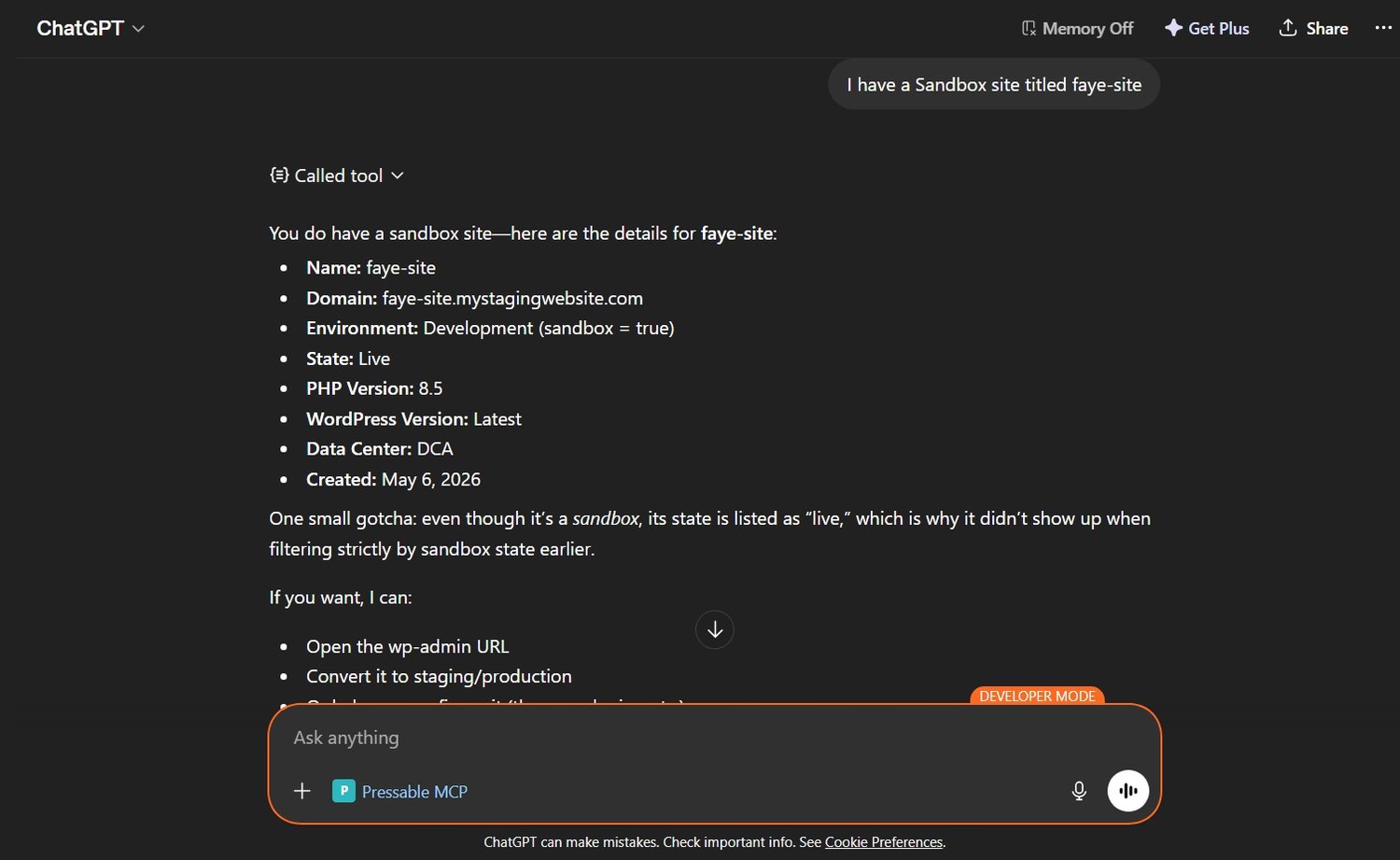
Although personally, I found the setup and overall usability smooth. The only minor issue I came across while using it was that the AI (ChatGPT) couldn’t list my sites at first. The first question I asked was “list all my sites” and it responded no sites were found but after I told the AI about it, it knew it. Aside from that, there was no other issue.
Step-by-Step: How to Set Up Pressable MCP
In this tutorial, I'm going to be using ChatGPT browser. Since ChatGPT browser doesn't require any API key to connect with Pressable MCP, if that's what you also want to make use of, kindly skip step two, three and four.
Step 1: Create a Pressable Account
First, you need a Pressable hosting account. Pressable is a managed WordPress hosting company designed to simplify WordPress management for businesses, bloggers, and agencies.
If you already have a Pressable account, you can just login into your account. While if you currently make use of another WordPress hosting provider, Pressable offers free assisted site migration with 100% uptime and a 30-day money back guarantee if you’re not satisfied with your purchase. You also get two months free when you subscribe to the yearly plans.
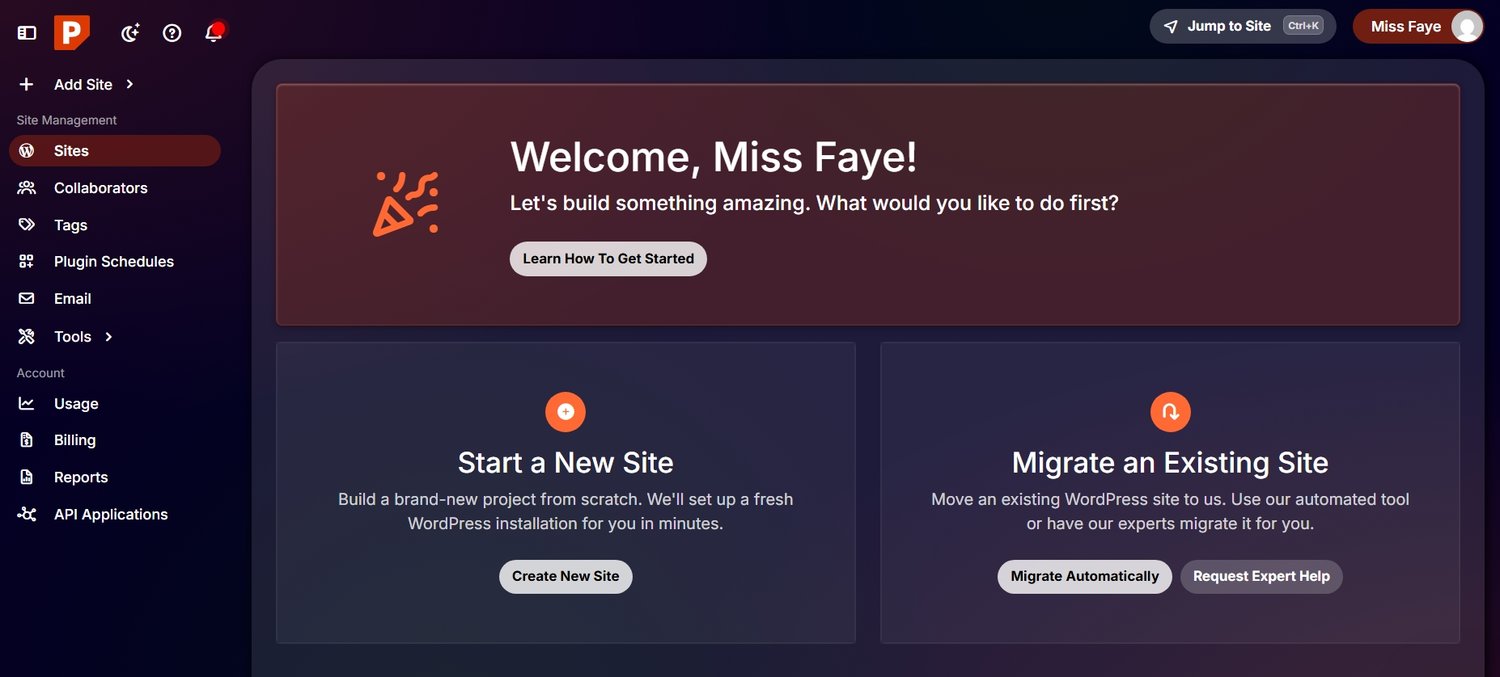
Head over to Pressable.com and sign up now. After signing up, log into your My Pressable dashboard.
Step 2: Go to Access Your API Key
Inside your Pressable dashboard, navigate to tools and under tools select Pressable MCP.
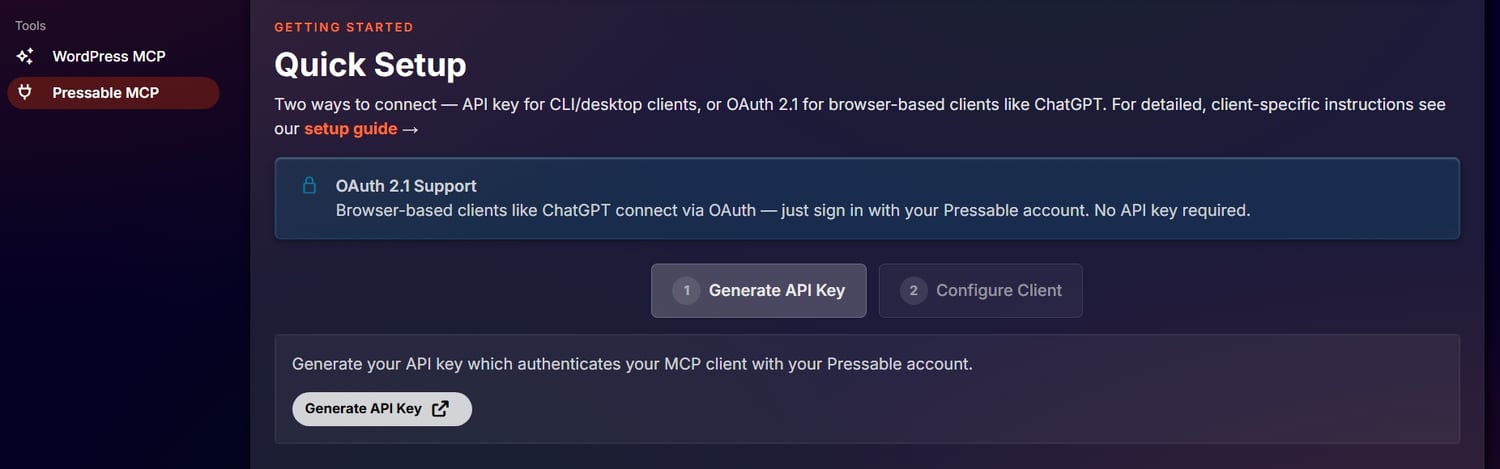
Here, you can click the Generate API Key button which will take you to the Access Token page.
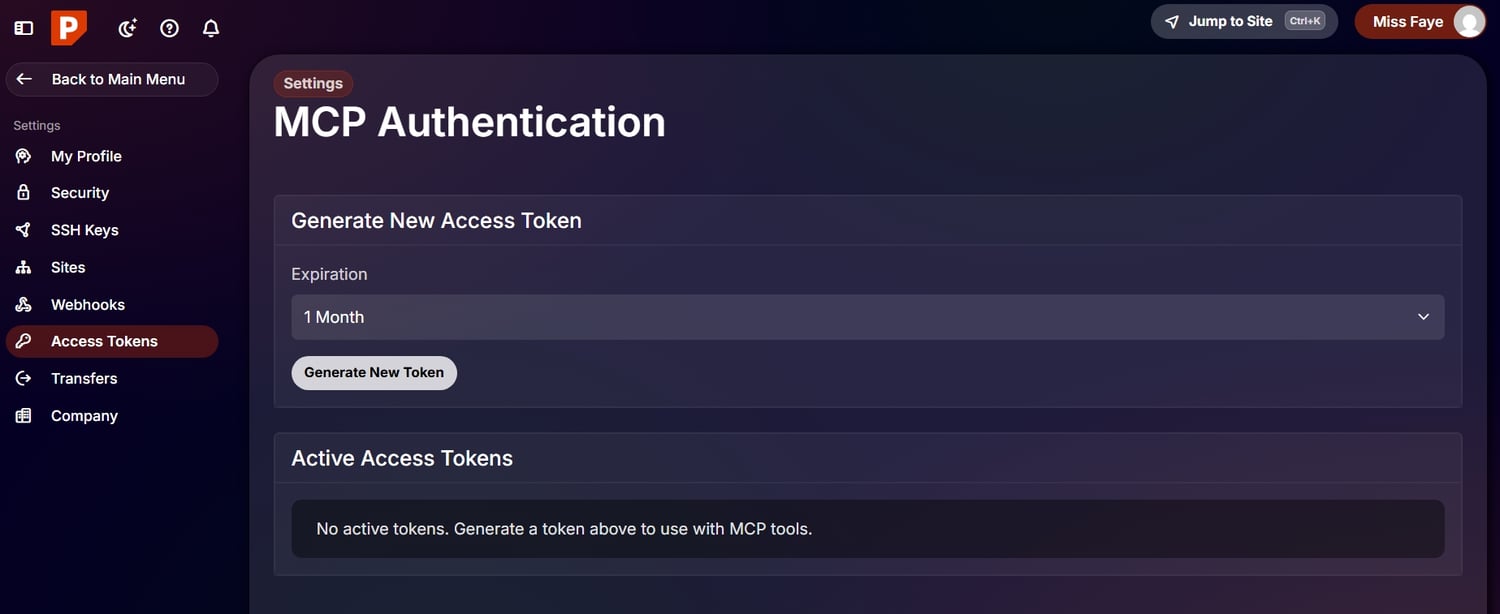
This is where you generate your MCP authentication key. This key is what allows AI tools to securely communicate with your hosting account.
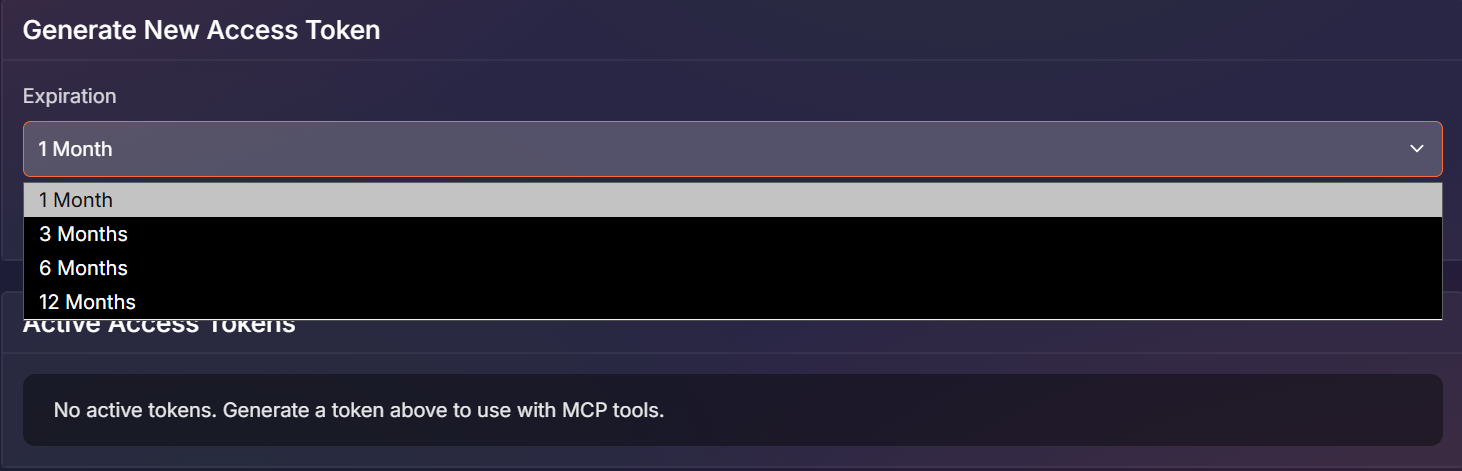
As in the screenshot above, you can select how long you want the token to last before expiring.
Step 3: Generate an MCP Key

Once you've selected your preferred expiring date, you hit the Generate button and your API key is ready. You should see the message "you have an active MCP auth key" in the Pressable MCP section of your dashboard.
You also have the option to revoke the key you just generated before its expiration.
Step 4: Choose Your AI Tool
Pressable MCP currently supports tools such as:
- ChatGPT
- Claude Desktop
- Claude Code
- Gemini CLI
- Grok
- Llama
- Mistral
However, there is an important detail. Some AI tools require Node.js installation before setup works correctly. This includes Claude Desktop, Claude Code, Gemini CLI, Grok and Mistral.
Node.js is software runtime environment developers commonly used for JavaScript applications. Beginners will definitely need help installing it giving exception to developers. If this is too much for you and you don't know anything about writing codes, I'd advise you to use ChatGPT like I'll be using in this tutorial.
Also important: Pressable MCP is currently not available for Gemini browser integrations or Cohere.
Step 5: Connect the AI Tool
To make use of ChatGPT browser, head over to your Settings and navigate to Apps.
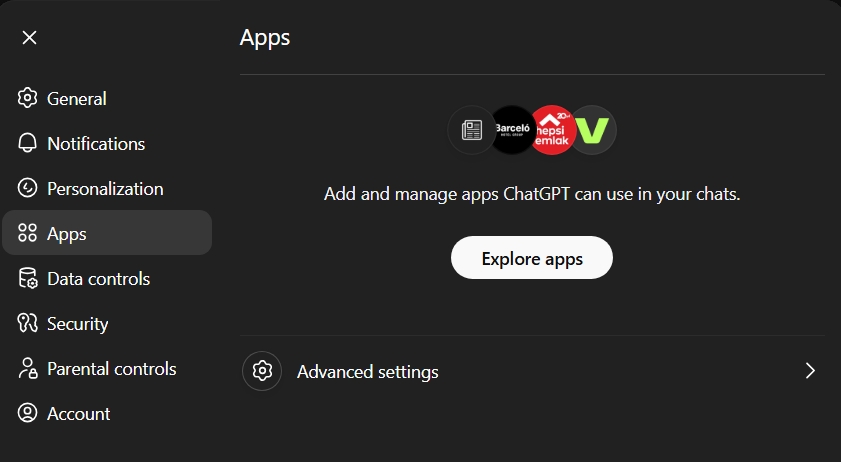
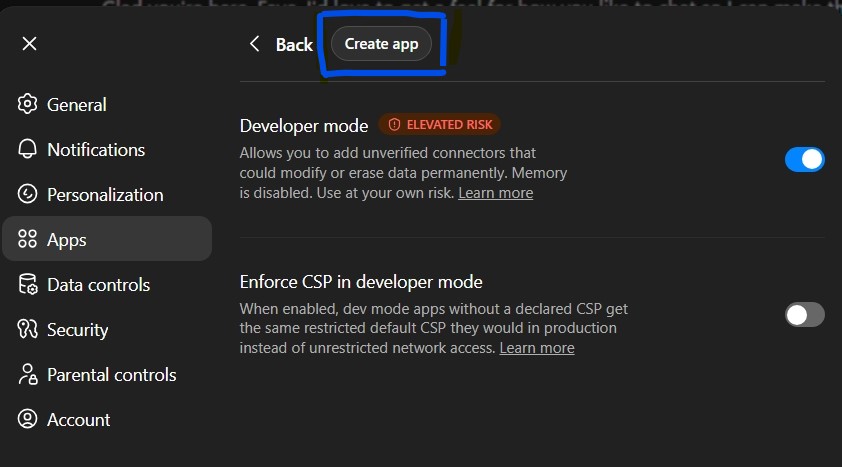
Under Apps, you should see Advanced Settings. Here you would need to turn on Developer mode and click the Create app button above.
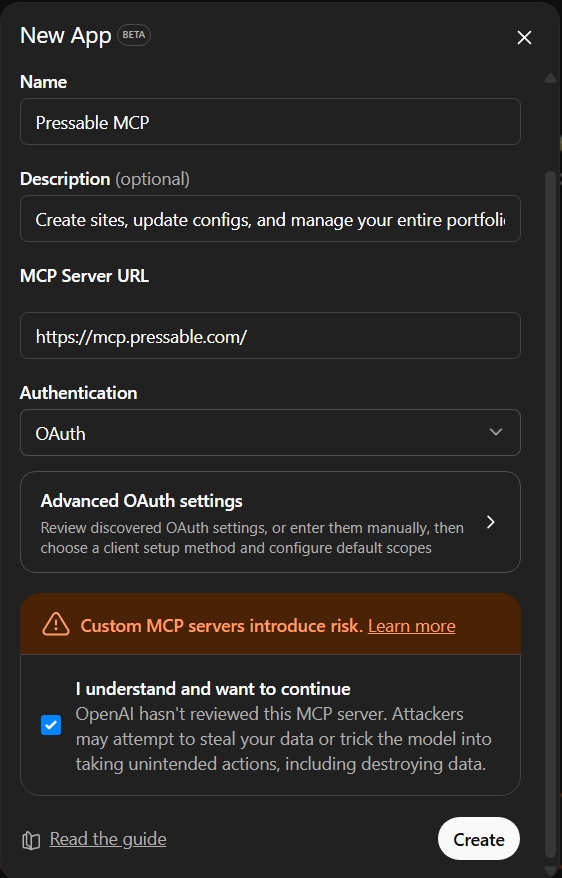
Now you would need to add your app name, description (optional) and a MCP Server URL. Pressable MCP server URL is https://mcp.pressable.com/. Set the Authentication to OAuth, tick "I understand and want to continue" and then Create.
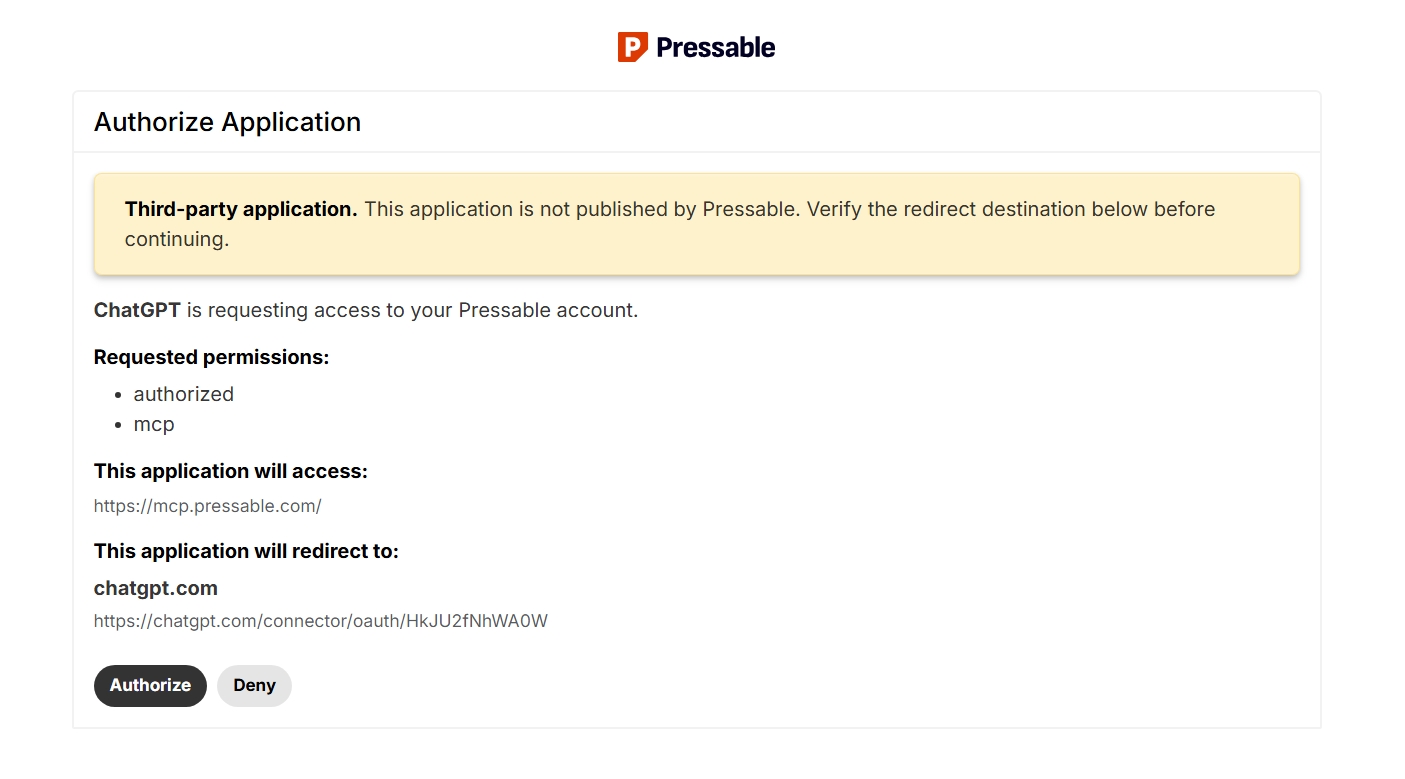
You would need to authorize ChatGPT in your Pressable account and to do that simply click Authorize.
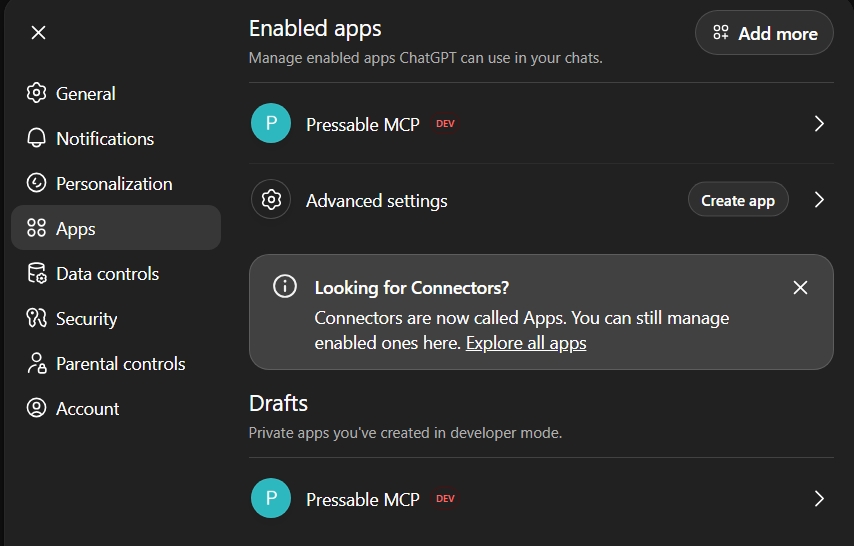
You should see Pressable MCP connected in the app section of your ChatGPT account.
A Quick Note: You can choose to create a new ChatGPT account solely for this purpose.
Step 6: Test Simple Prompts
I had already created a sandbox site manually in my Pressable dashboard before setting up Pressable MCP.
A sandbox site is a private testing version of a website where you can safely experiment without affecting your live website. Think of it as a “practice environment” where you can test plugins, themes, design changes, updates, or new features before making them public.
Another thing I really like about Pressable is that you can organize websites into different environments depending on their purpose. You can set your sites as:
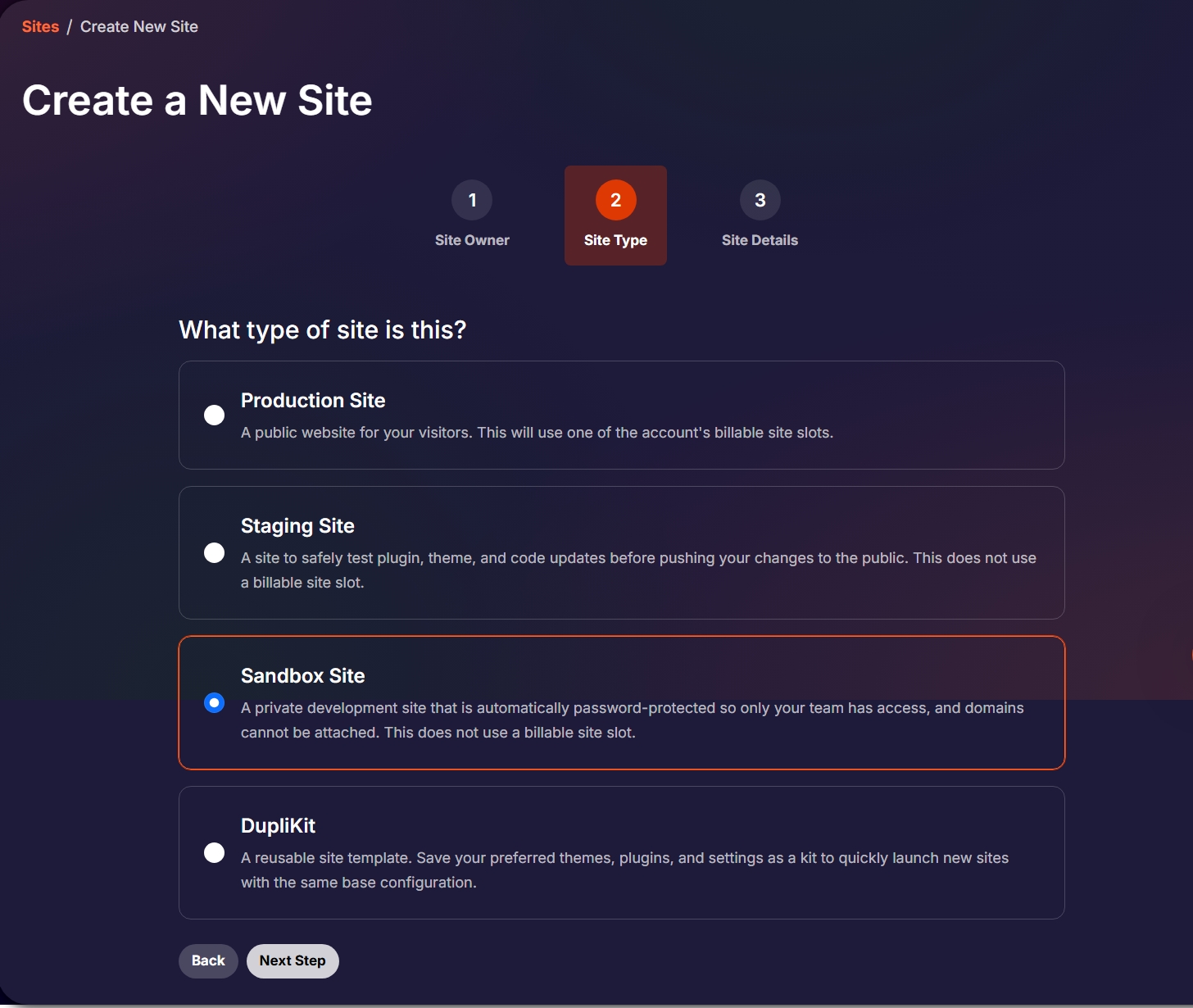
- Sandbox: for testing ideas, experimenting, and development work.
- Staging: for previewing updates before pushing them live.
- Production: your actual live website visitors see.
With Pressable MCP, users can create and manage these environments using AI prompts instead of manually configuring everything through hosting dashboards.
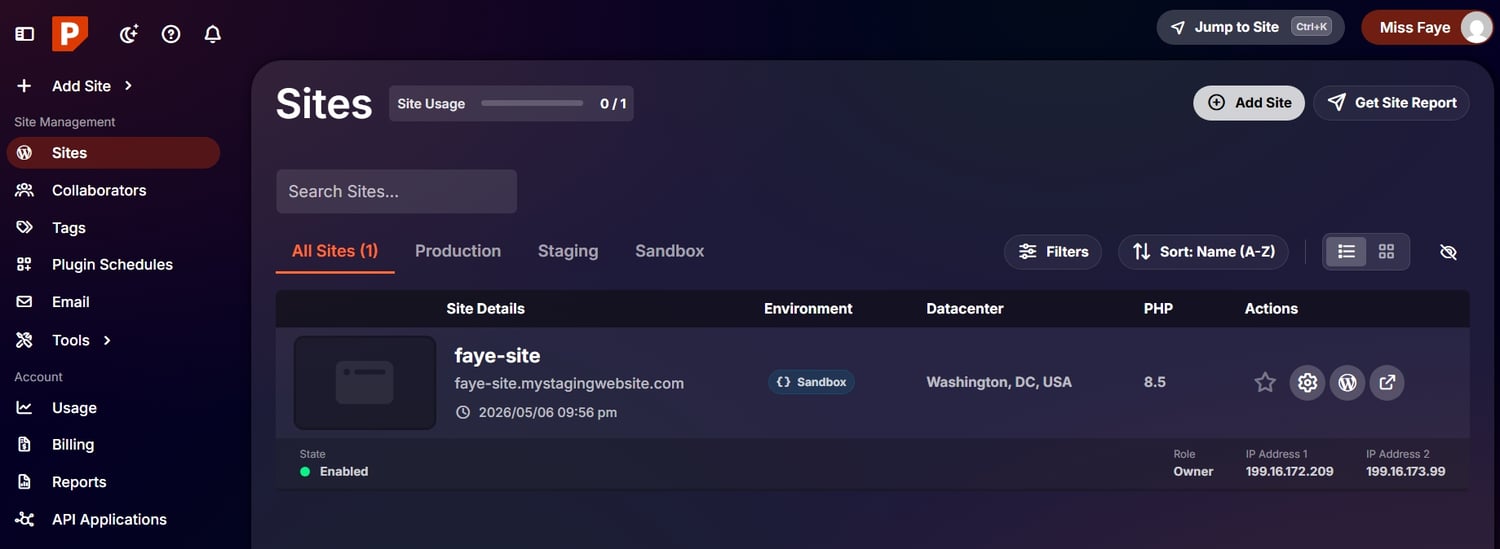
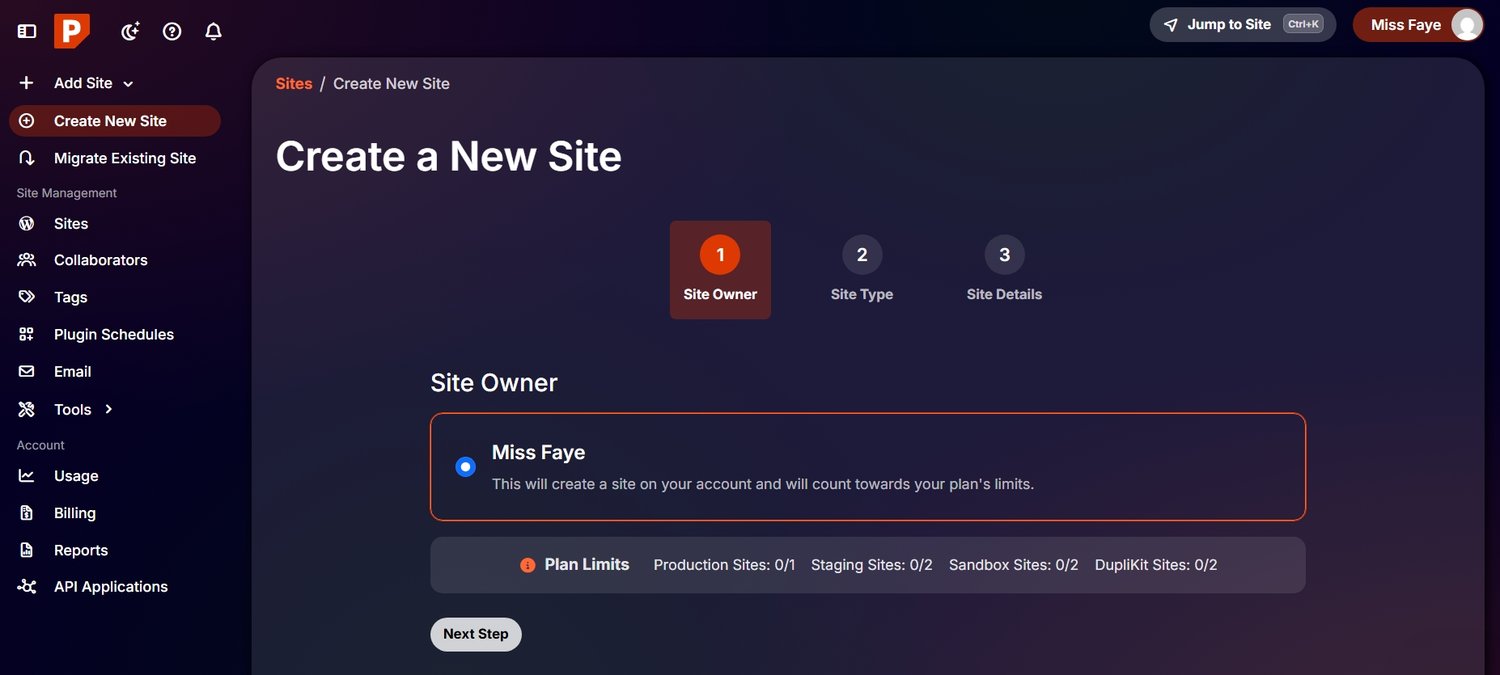
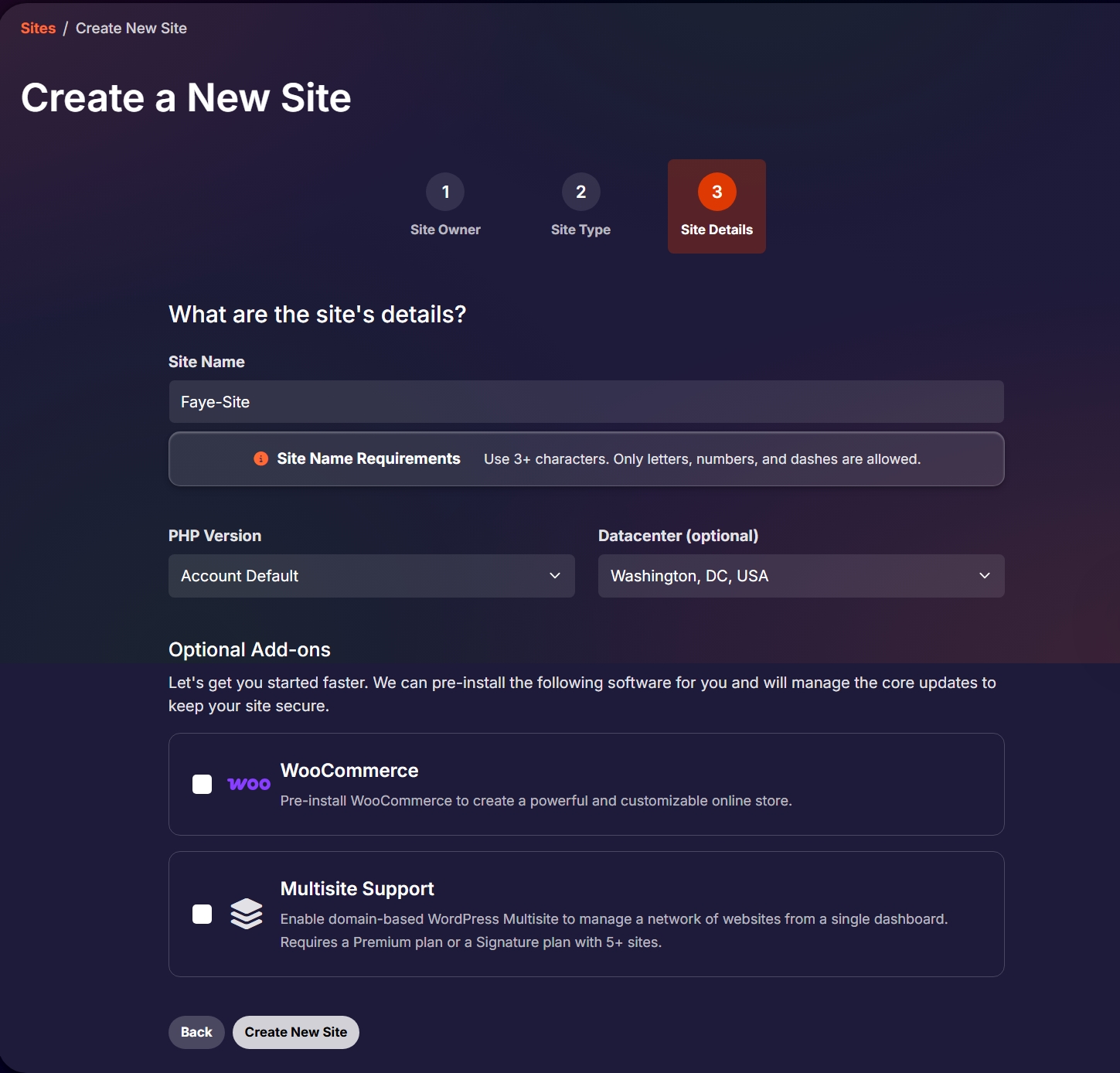
To manually create a WordPress site on Pressable, head over to "create new site", answer a few questions and your site would be ready.
To enable Pressable MCP app, click the plus icon in your message bar and scroll down to more. There you would find the Pressable MCP app. Click to activate and now ChatGPT can start making real time changes in your site.
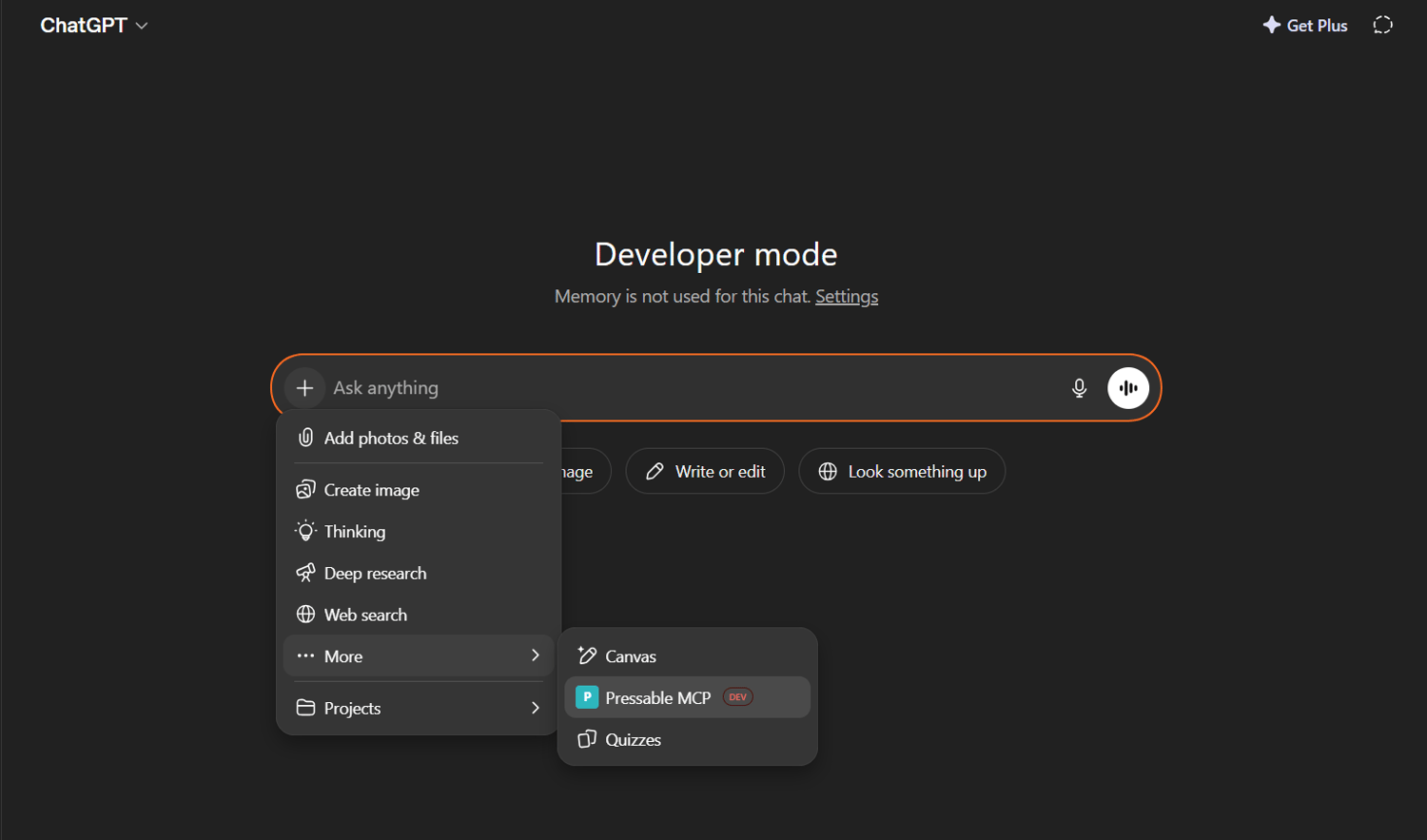
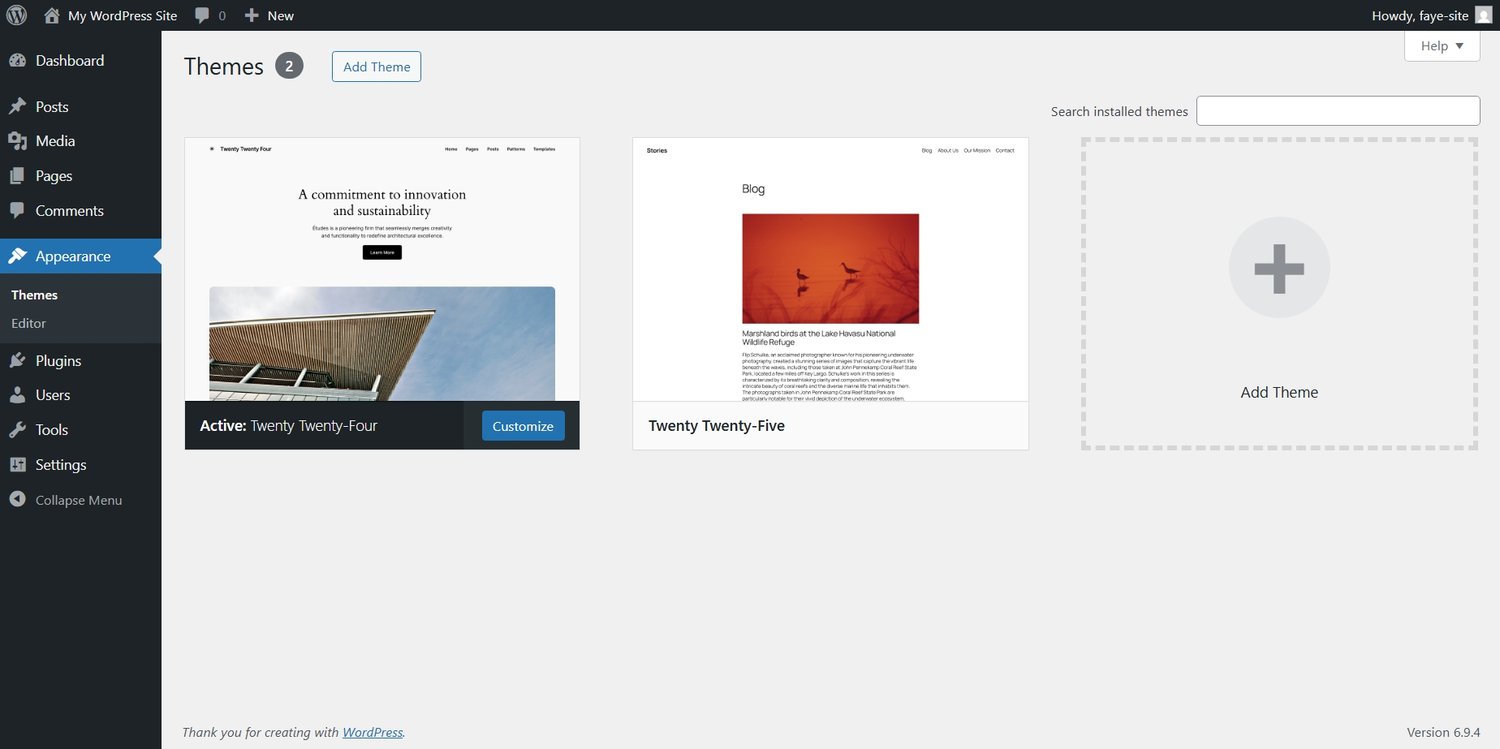
To test run Pressable MCP, I started by asking ChatGPT to install a WordPress theme on my site (I gave it my site ID which you can find in site settings, or you can input your site domain name) and it did with my permission granted.
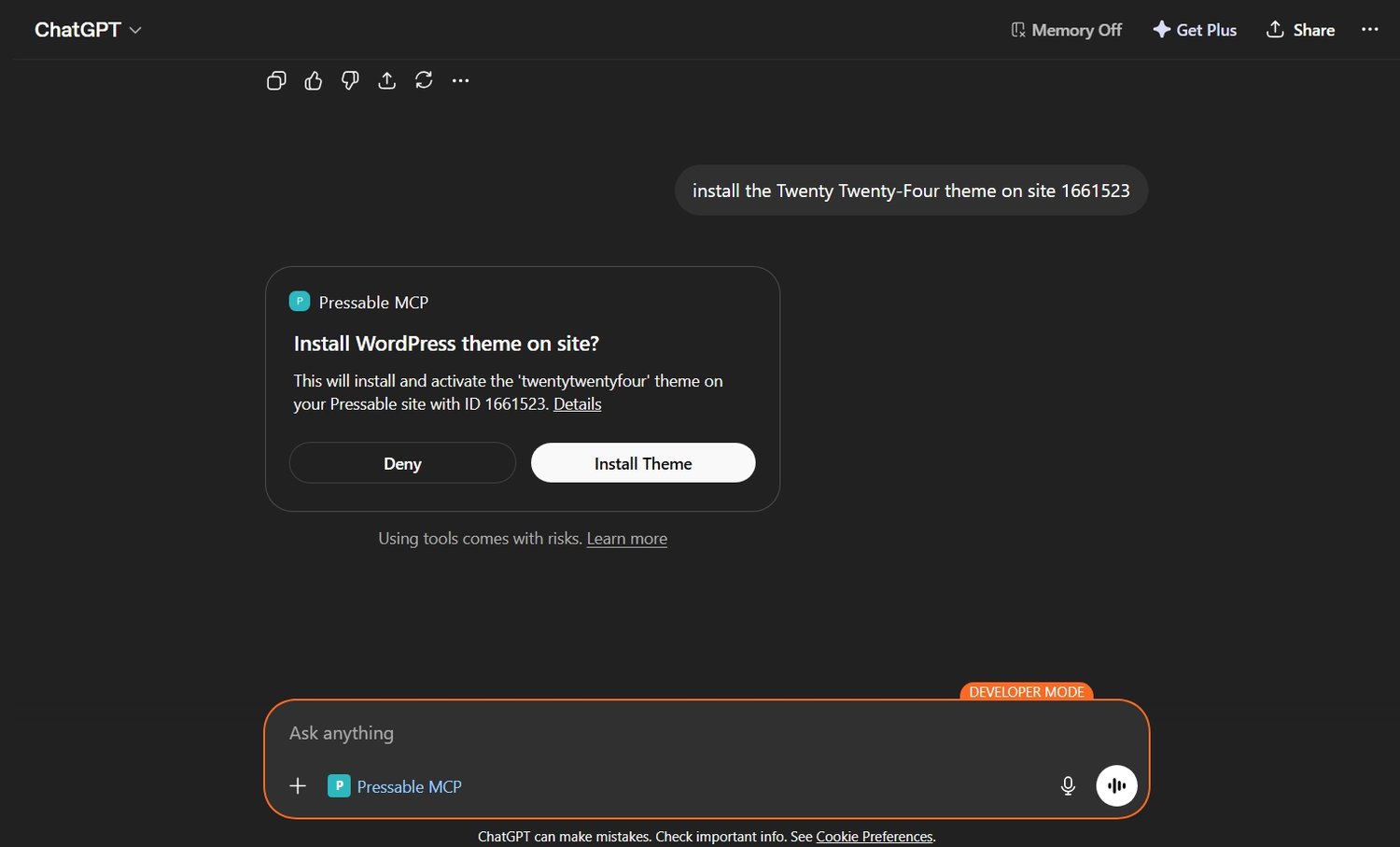
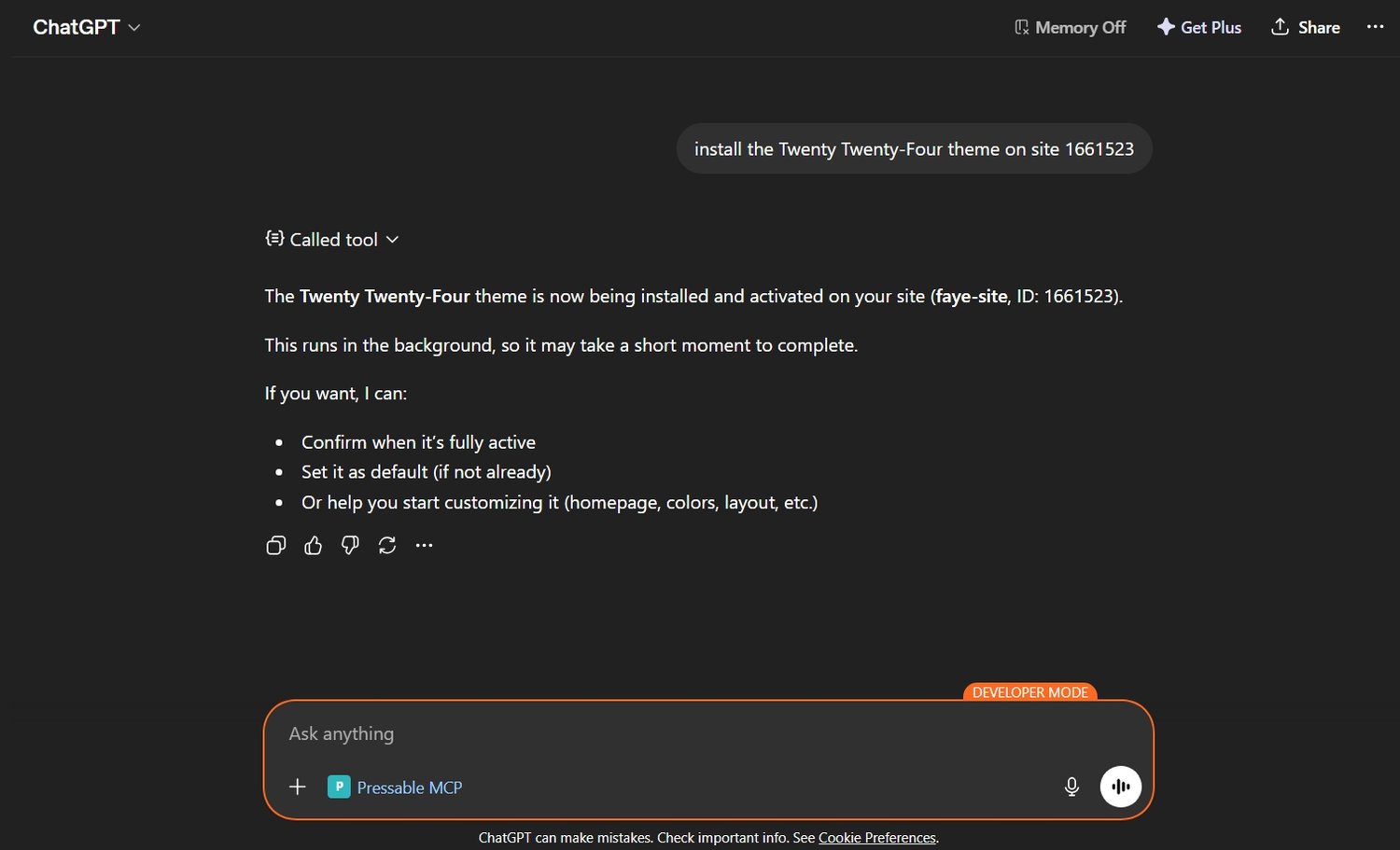
This was my site before the theme was installed:
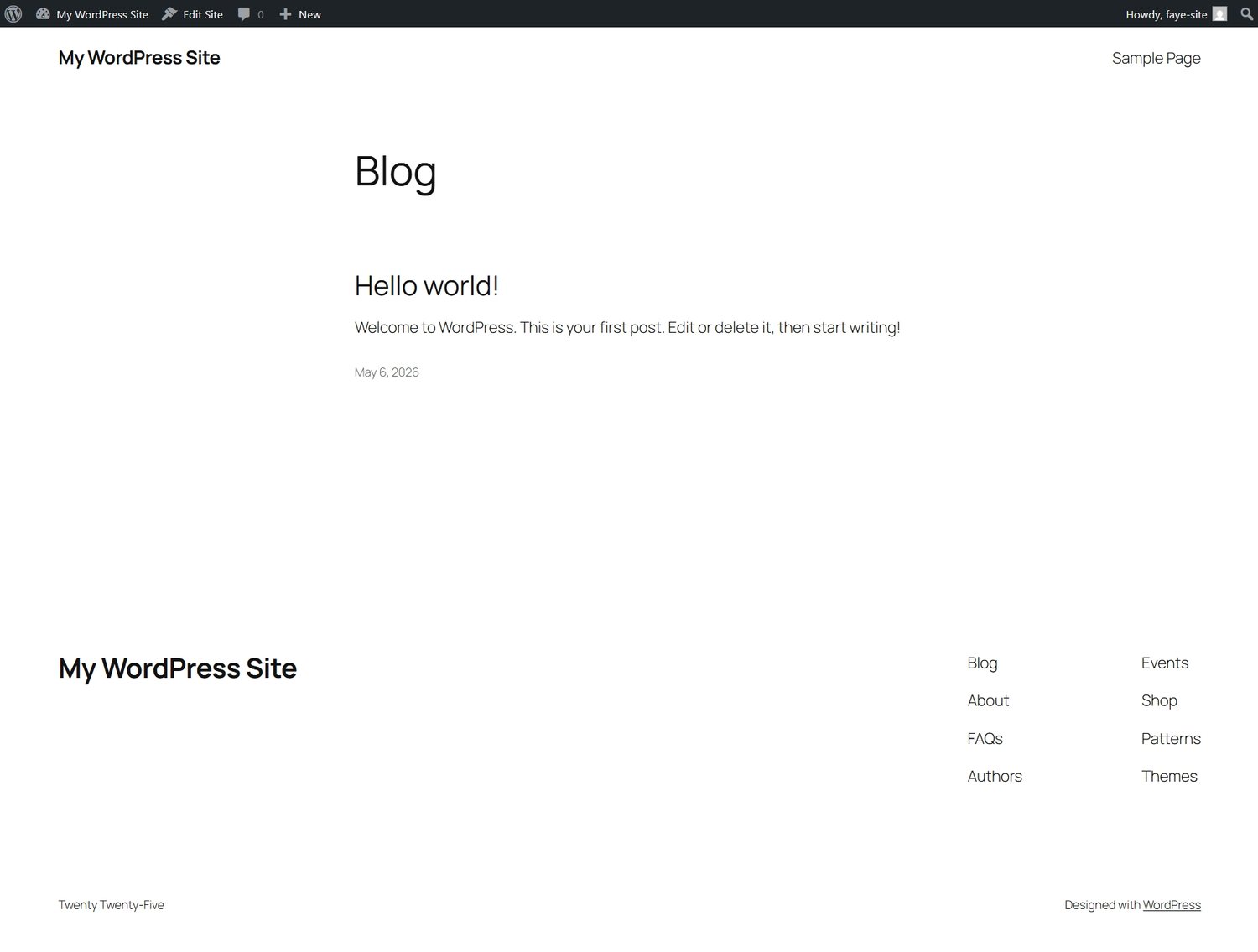
And this is my website after the theme was installed:
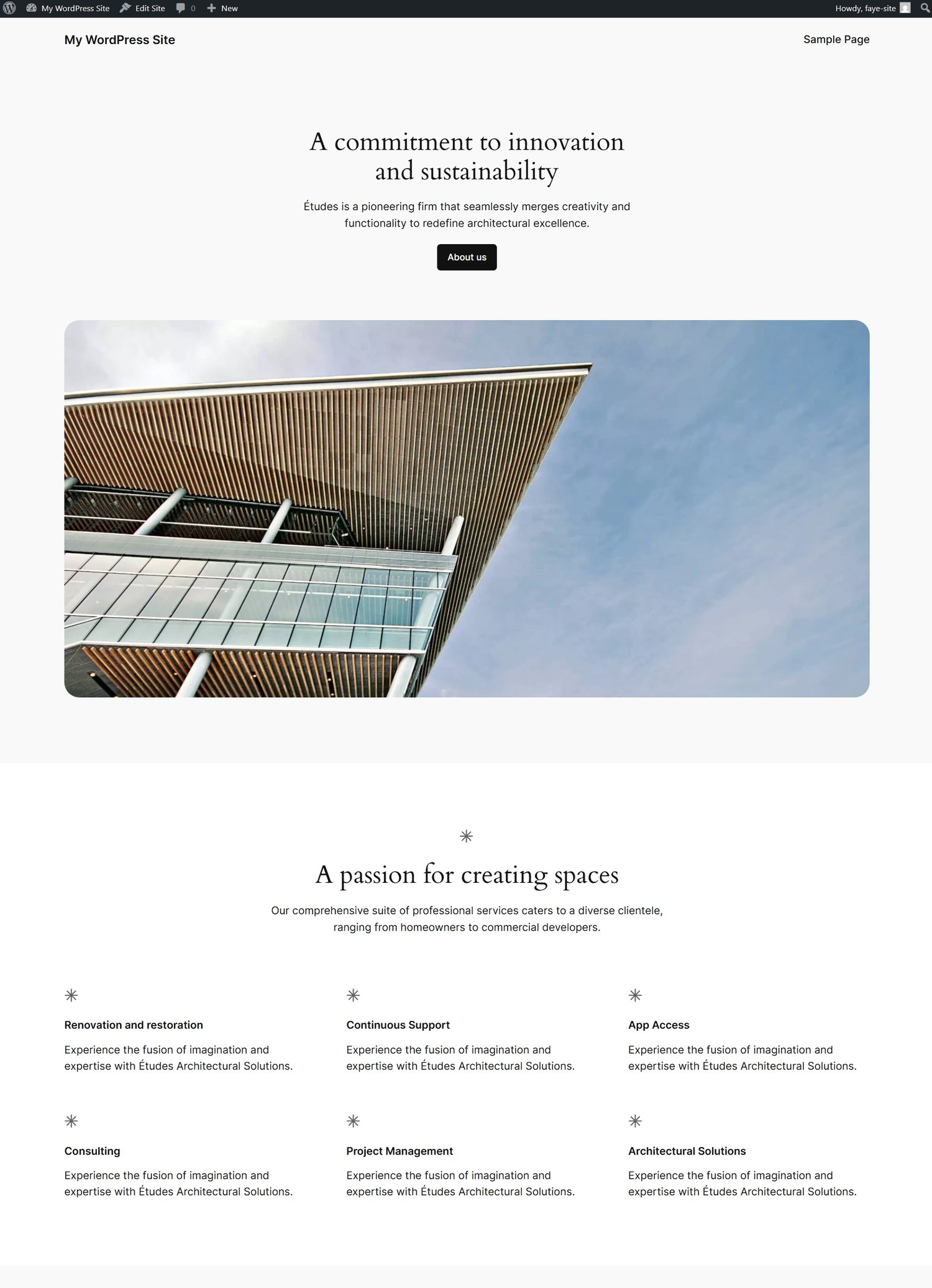
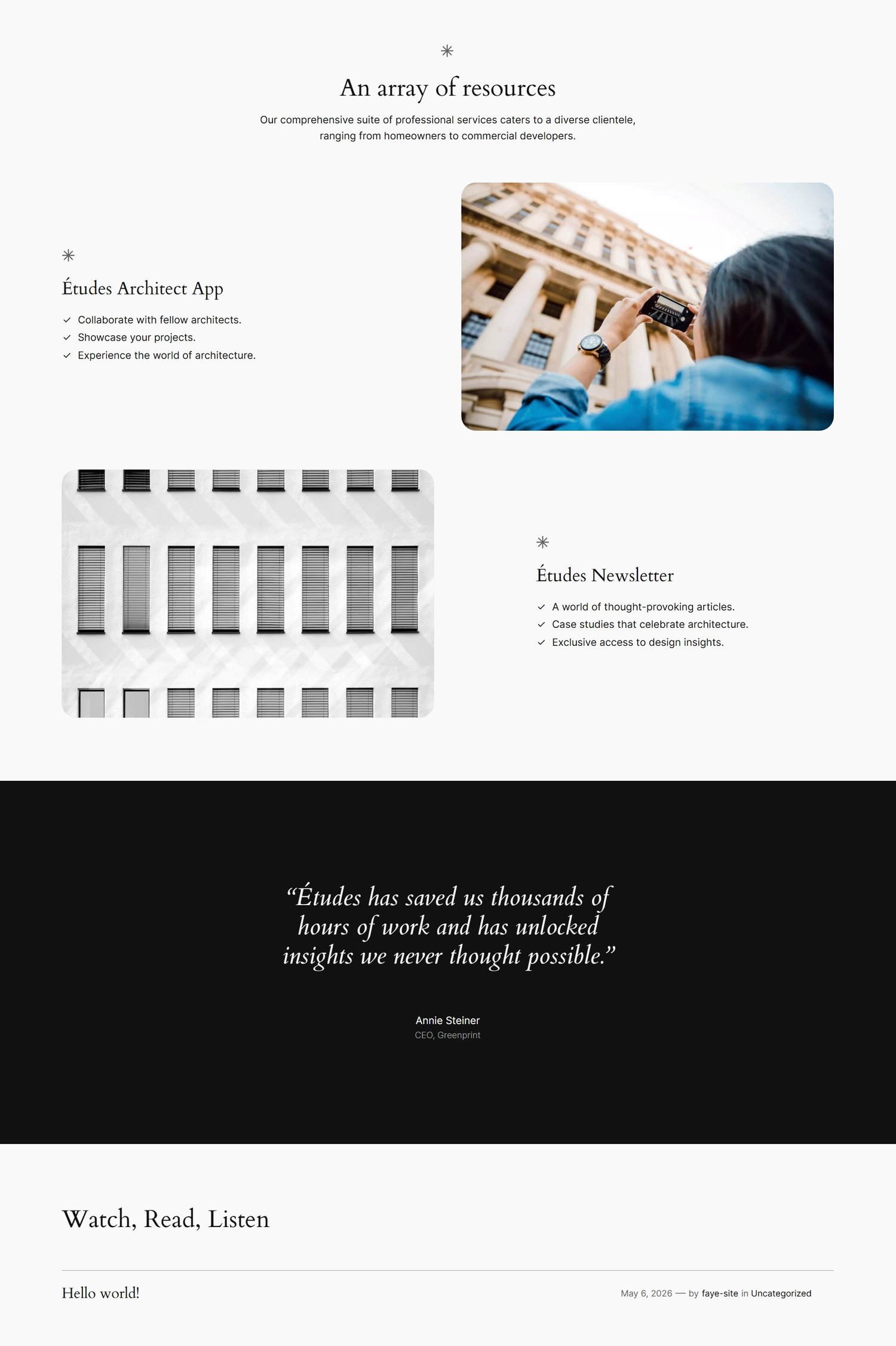
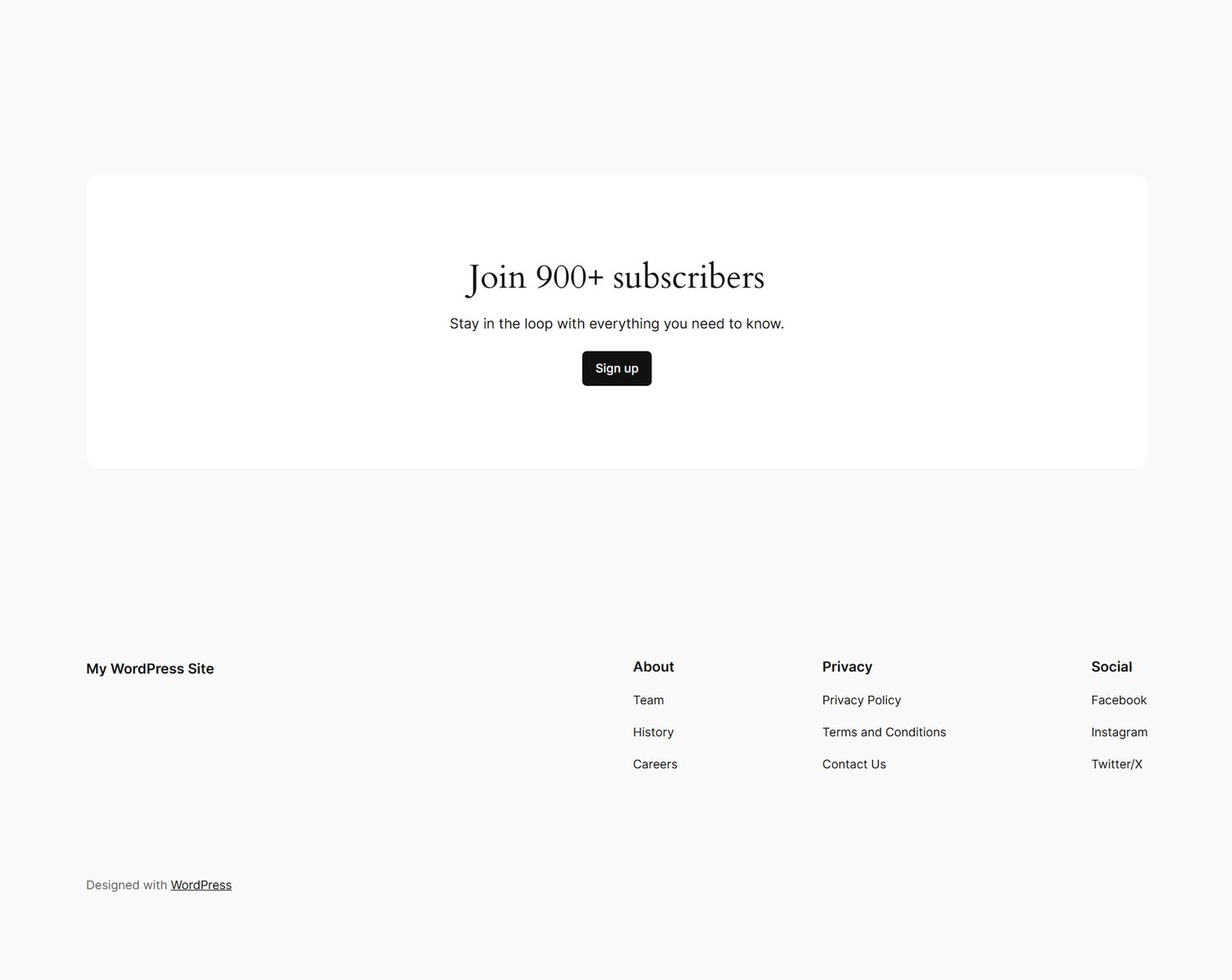
You'll find the installed theme in your WordPress dashboard.
I proceeded to ask ChatGPT to show me the Jetpack status for my sites and it did.
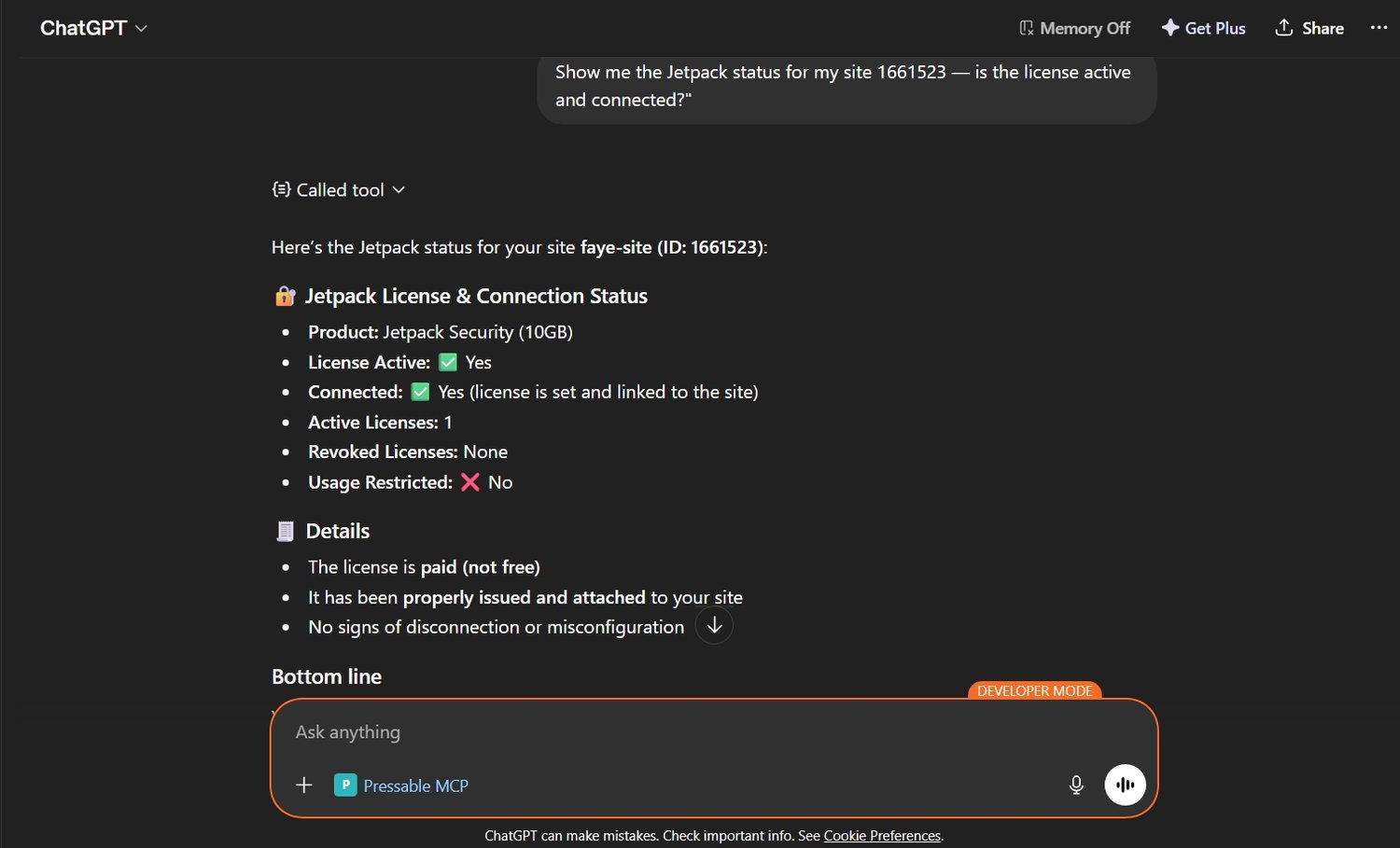
As you can see in the screenshot above, it's active and paid for. Every Pressable account comes with Jetpack security and Akismet spam protection included, so you do not have to pay for them separately.
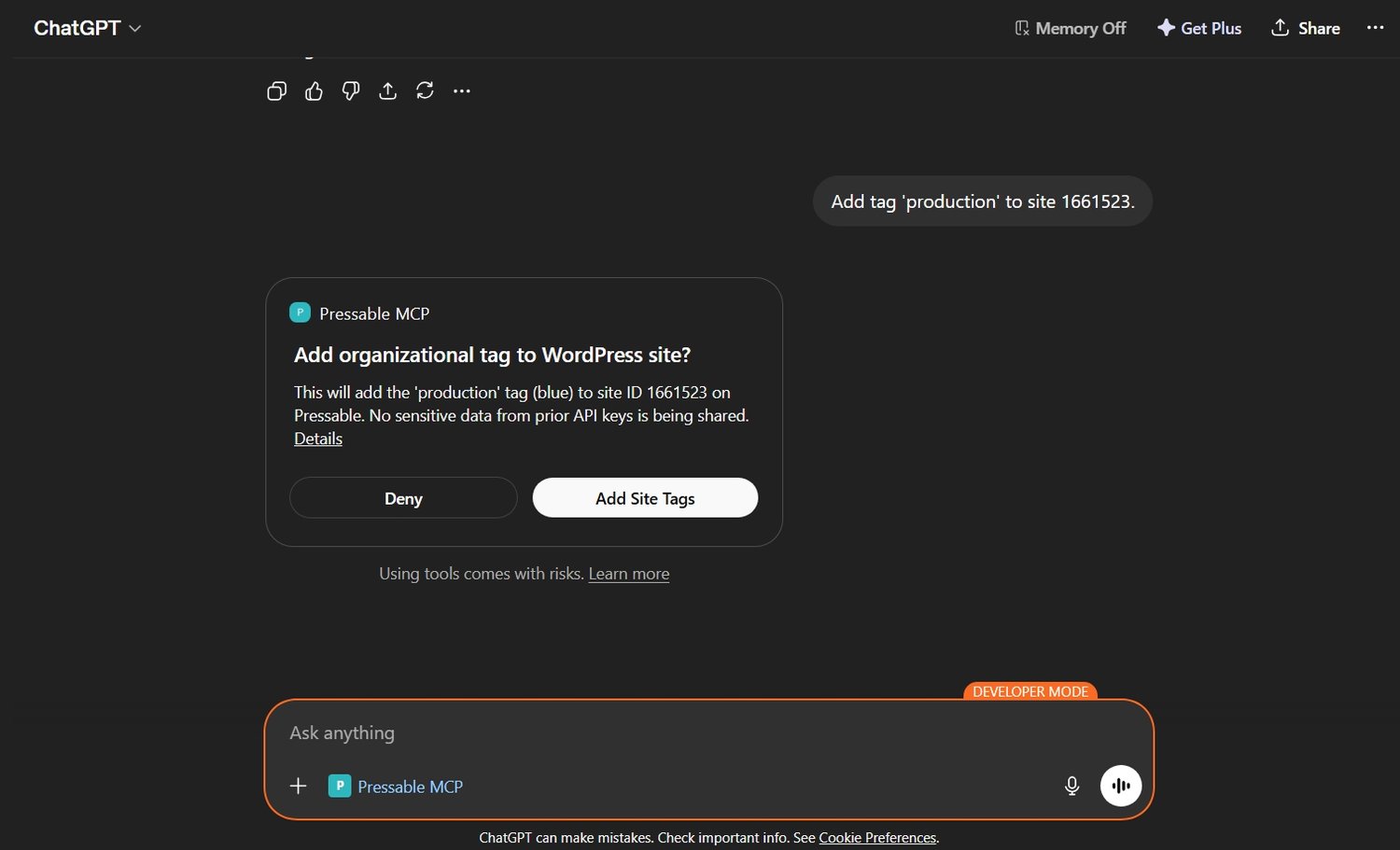
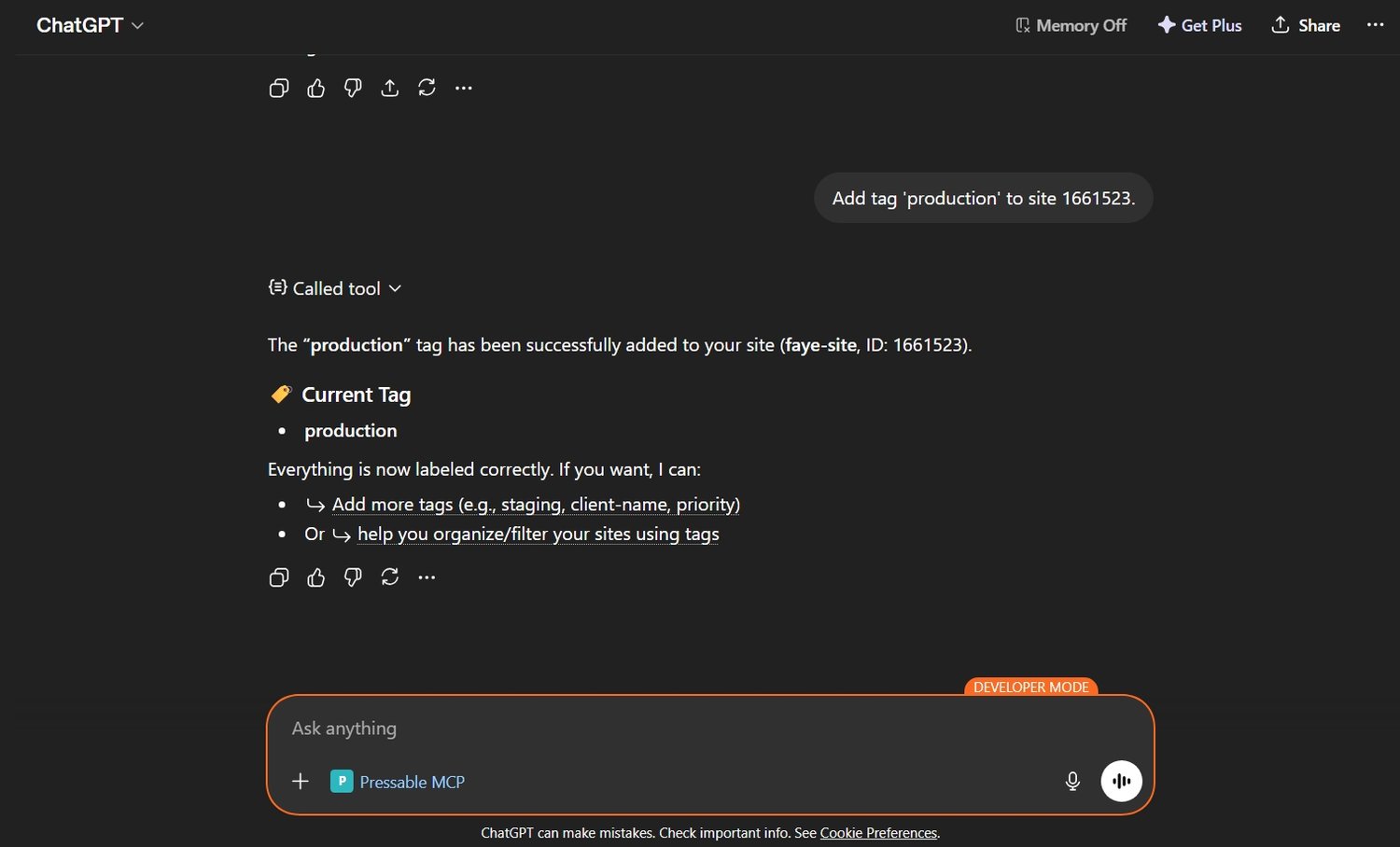
I went on to tell ChatGPT to add a tag to site which it also did as I permitted it to.
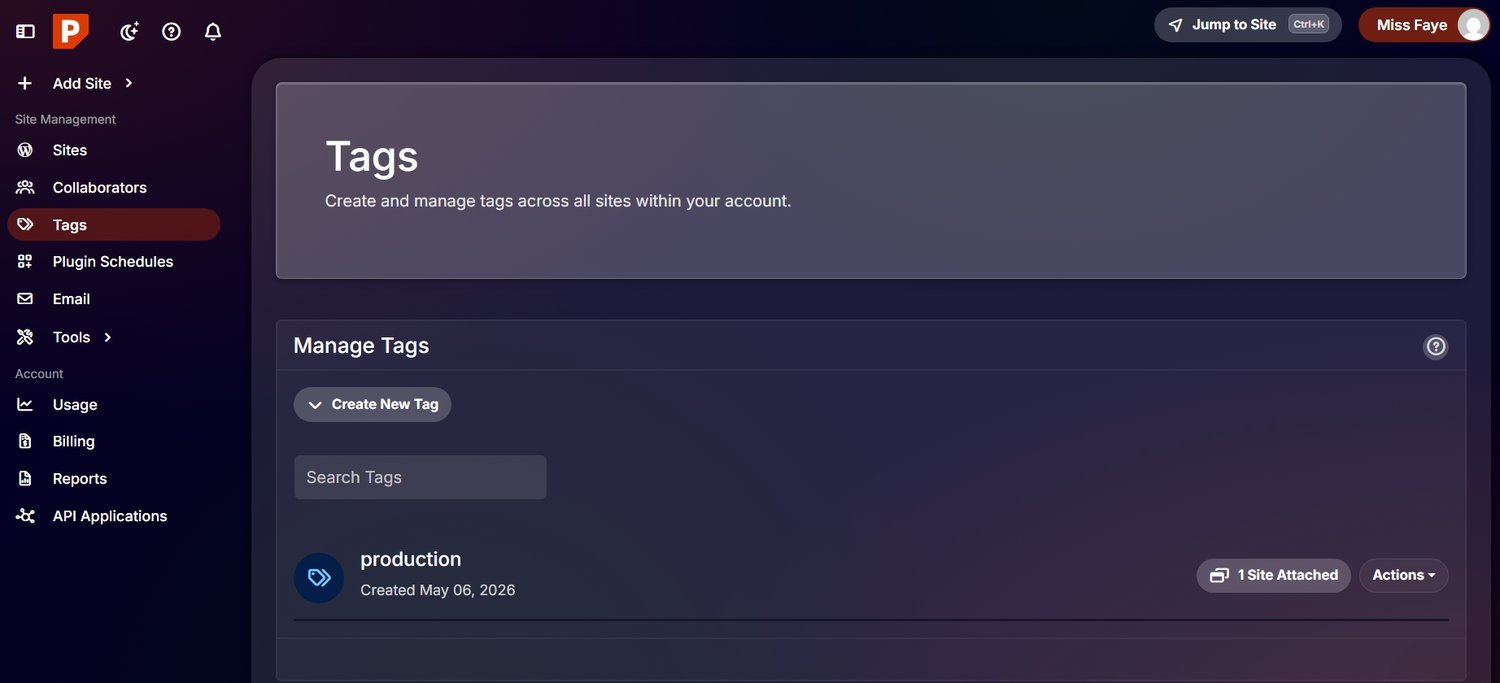
Here is an image of the tag reflecting on my Pressable dashboard.
Step 7: Gradually Expand Usage
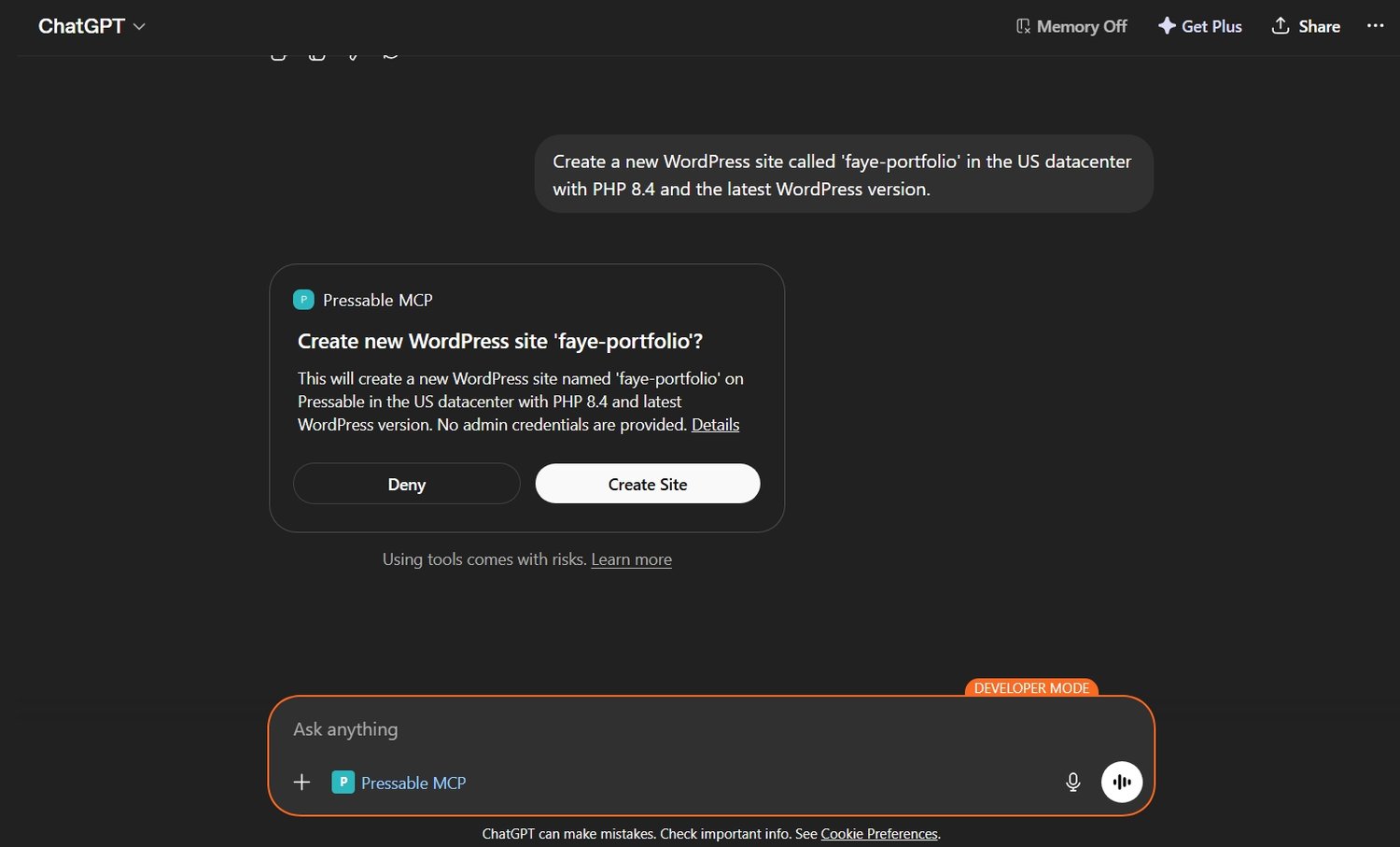
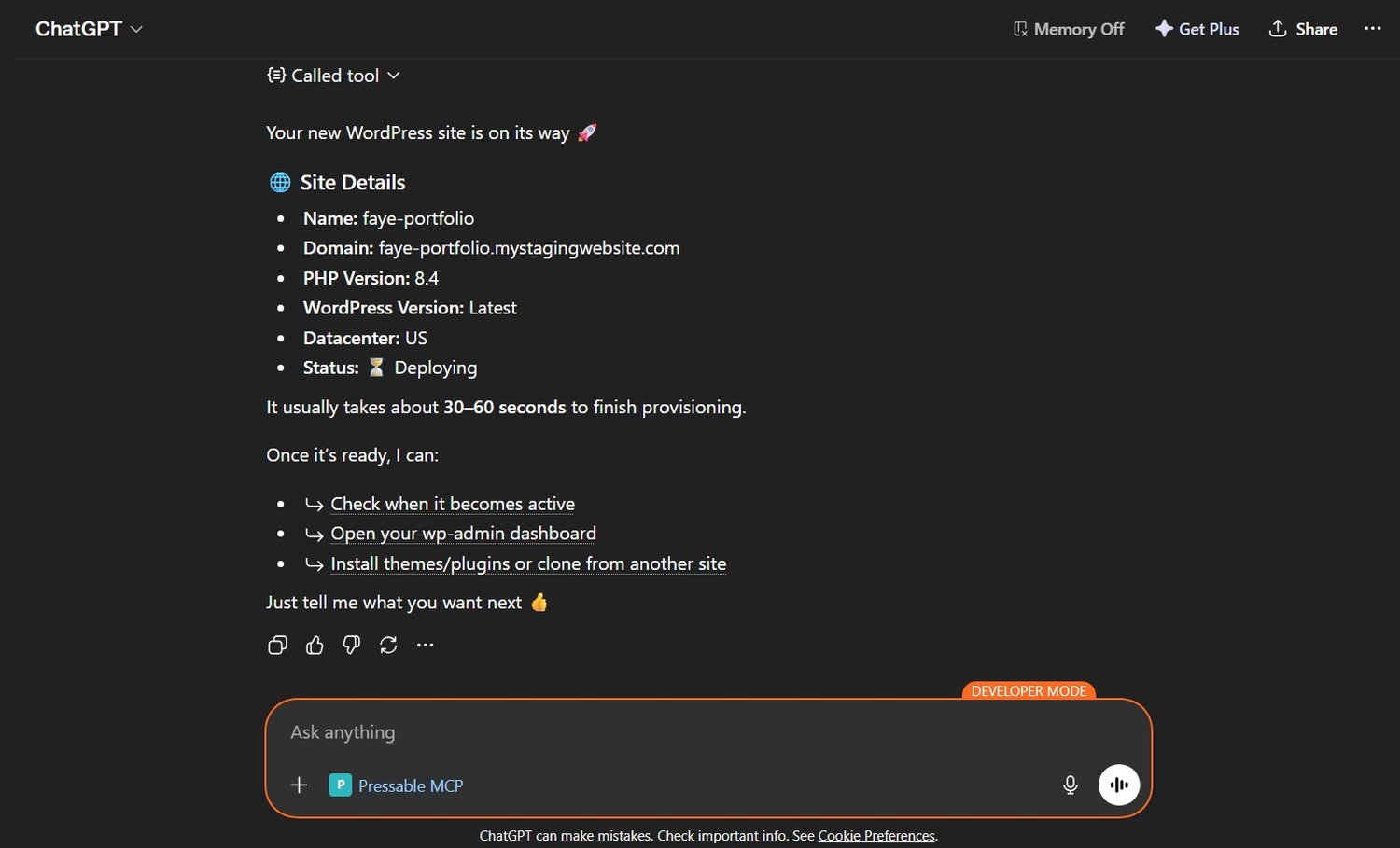
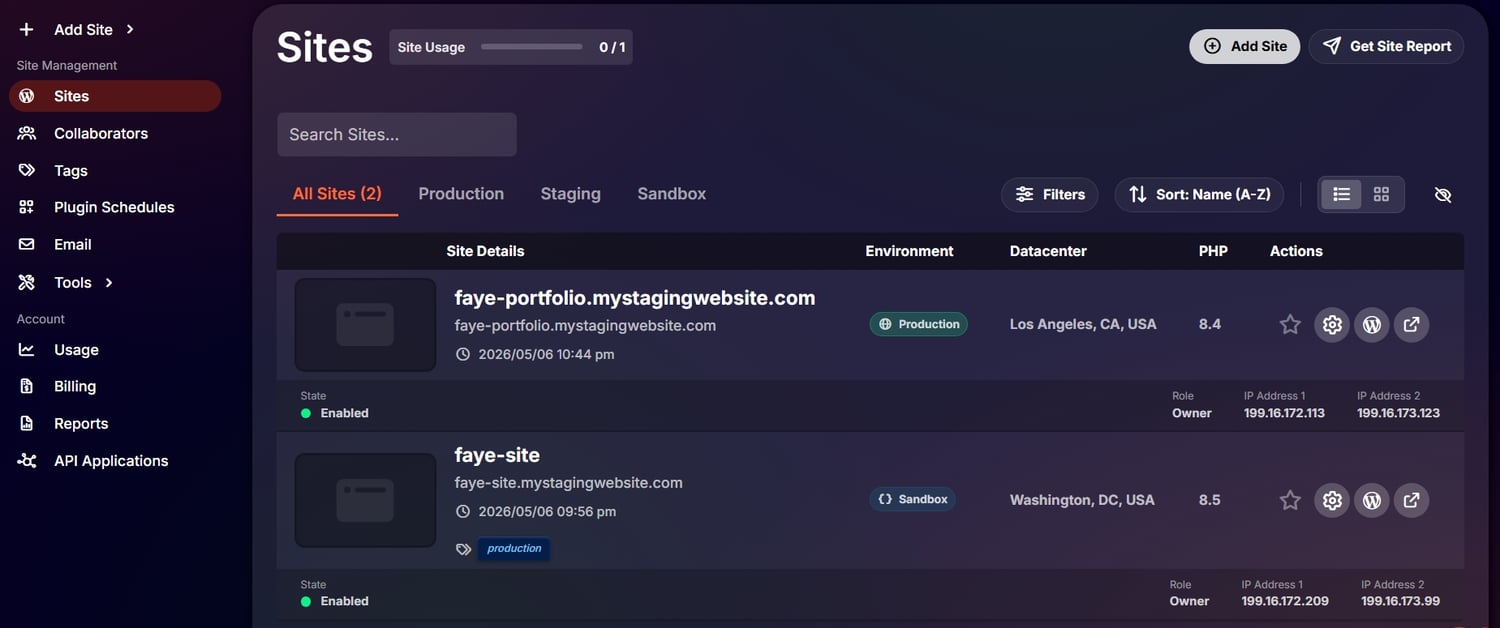
I expanded my usage of the MCP feature by prompting ChatGPT to create a new site for me which it did.
I tested more prompts like "update my PHP version from 8.4 to 8.5", "change my site name to The Buzz Store" and "install WooCommerce plugin" and all three of them were done in seconds.